SimLab is a process-oriented multidisciplinary simulation environment to accurately analyze the performance of complex assemblies. Multiple physics including structural, thermal, electromagnetics, and fluid dynamics can be easily setup using highly automated modeling tasks, helping to drastically reduce the time spent creating finite element models and interpreting results.
EDEM is high-performance software for bulk and granular material simulation. Powered by DEM, EDEM quickly and accurately simulates and analyzes the behavior of coal, mined ores, soils, fibers, grains, tablets, powders, and more. EDEM simulation provides engineers with crucial insight into how those materials will interact with their equipment during a range of operation and process conditions. It can be used stand-alone or combined with other CAE tools.
The EDEM-SimLab interface can be used to connect EDEM to other Altair products, such as AcuSolve (CFD), MotionSolve (MBD) and OptiStruct (FEA).
Starting from SimLab 2025.1, users setup an EDEM simulation, and provide the relevant coupling information directly within the SimLab interface. Creating an additional coupled solution or generating the EDEM deck separately is no longer necessary. In addition, users can now utilize the SimLab UI not only for coupled solutions, but also to prepare a standalone EDEM simulation from scratch and post-process it as well.
Currently, the integration includes:
- EDEM materials database imported into SimLab
- Bulk material creation supported with various particle shapes:
- Multisphere particles
- Library shapes
- Polyhedral particles
- Base physics and selected additional models:
- Hertz-Mindlin (default)
- Hertz-Mindlin with JKR
- Edinburgh Elasto-Plastic Adhesion model
- Bonding V2
- Heat conduction
- Wear model (without deformation)
- Type C rolling friction
- Standard rolling friction (default)
- Linear elastic bonded model
- Particle Factory / Volume Packing can be added to geometry – Note: volume packing by mass is not yet supported
- Geometry motion can be added to the simulation
- Geometry mesh is automatically generated for EDEM
- Geometries can be defined as virtual
- Customizable environment boundaries and gravity setup
- EDEM simulation is generated directly
- EDEM–AcuSolve co-simulation can be initiated within SimLab
- Both standalone and coupled EDEM results can be post-processed within SimLab
How to start ?
Standalone EDEM set up via 'Particles' solution while EDEM-AcuSolve coupled simulation via 'Flow with Particles'. Both can be found under Solutions → Physics.
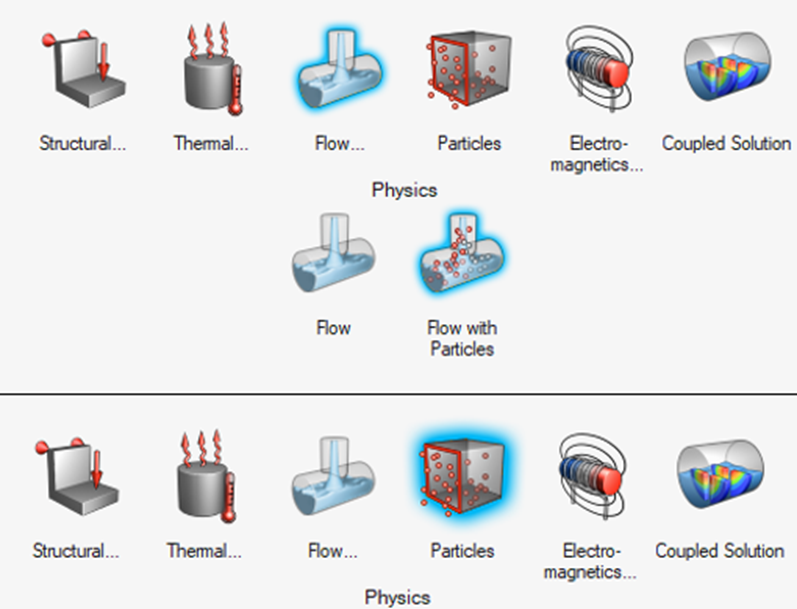
Depending on whether the user wants to create a simple tablet mixer or a complex air classifier with rotors and air circulation, everything can now be both setup and post-processed within SimLab.
Usage example: Air Classifier Using EDEM-AcuSolve coupled solution within Simlab
Air classifiers are widely used in industries such as cement, mining, agriculture, pharmaceuticals, and recycling, where separating particles by size or density is essential. These systems utilize airflow to classify bulk materials without the need for mechanical sieving, offering high efficiency and minimal mechanical wear.
Air classifiers also play a vital role in agriculture, especially in the cleaning and grading of grains, seeds, and legumes. By adjusting airflow parameters, unwanted debris, dust, and undersized particles can be effectively removed, improving the quality and consistency of agricultural products before packaging or further processing.
Modeling such systems provides insight into particle trajectories, separation efficiency, and the impact of design or operating parameters.
Key challenges in using air classifiers include:
- Particle Separation Accuracy: Achieving a clear and consistent cut between fine and coarse particles requires precise control of airflow velocity and direction.
- Pressure Drop and Energy Efficiency: Minimizing pressure losses through the system while maintaining effective classification reduces overall energy consumption.
- Wear and Maintenance: High-speed particles can cause erosion of internal components. Simulations help in identifying critical zones and evaluating protective design solutions.
By coupling EDEM with AcuSolve, engineers can visualize and optimize the interaction between the particle flow and the turbulent airflow within the classifier. This allows for the design of more efficient and durable systems, fine-tuning operational parameters and validating performance before building physical prototypes.
Step 1 - Pre-process the geometry and create mesh
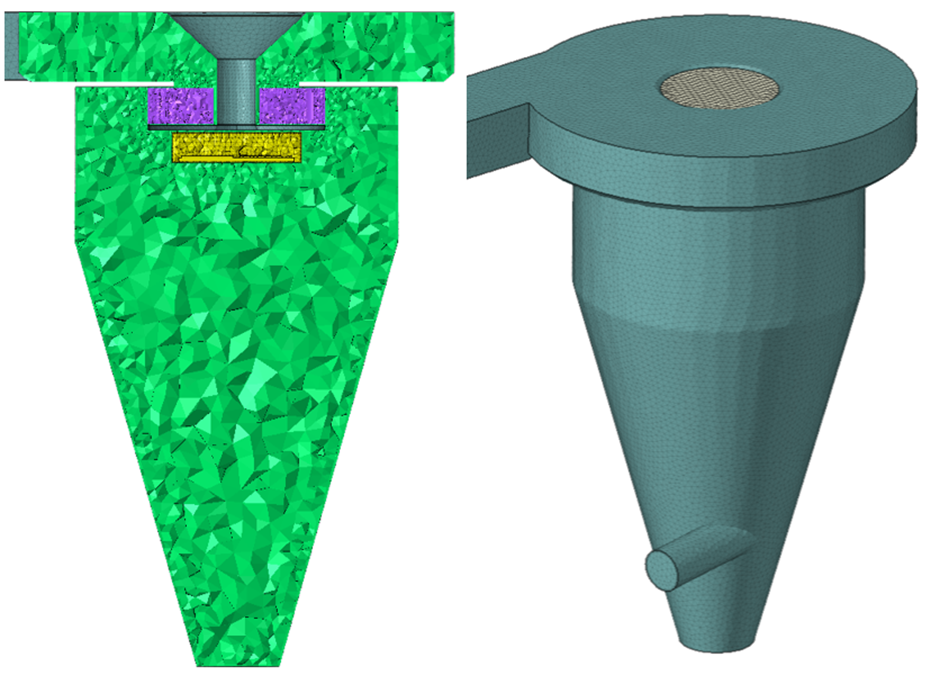
SimLab supports various CAD formats, allowing any geometry to be imported It’s sketch and geometry tools are also of high quality, so any type of device can be created from scratch directly within the SimLab UI.
For EDEM simulations, the mesh and geometry do not significantly affect result accuracy or computational speed. However, for CFD codes, detailed geometry review and simplification are necessary to maintain a proper balance between precision and computational cost.
If rotating parts are included, it is necessary to define a distinct volume around them. This volume will be assigned either to a rotating reference frame or treated as a moving mesh.
Step 2 - Create coupled solution
From the Solutions bar, choose Flow → Flow with Particles. Include the previously created geometry and assign appropriate materials to both AcuSolve and EDEM parts.
CFD requires a multiphase material definition, including a carrier phase (e.g., air) and a dispersed phase, which represents the particles.

Step 3 - Setup solution settings
This step is common and crucial for every coupled solution. To ensure correctly overlaid results in post-processing and to enable effective communication between solvers, proper configuration of the output time interval and time stepping is essential.
It is recommended to first define the time step for particles, based on the material properties and particle diameter. Users can either set a fixed time step or use the automatic option by specifying a percentage of the Rayleigh time step (20% is recommended).
Once the particle time step is defined, the flow time step should be set accordingly. For effective solver communication, it is recommended to set the flow time step within a range of 50 to 200 times the particle time step.
Solver engine settings can also be defined at this stage.
Step 4 - Boundary Conditions definition
EDEM standalone and coupled solutions in SimLab offer a clear and intuitive workflow. The Solution Browser clearly separates flow and particle boundaries, and moving parts are defined only once and shared between both solvers.
A typical CFD setup—such as for an air classifier—requires at least an inlet and an outlet. Particle flow boundaries include a Particle Factory, which can be configured in the same way as in EDEM.
Currently, SimLab supports most particle types available in EDEM, including multisphere particles, polyhedrals, and custom shapes. To ensure physically accurate interaction between particles and geometry, appropriate contact models and interactions must be defined.
In some cases, to reduce computational load, the EDEM simulation domain may need to be customized. Under Particle BC → Domain, users can define custom domain boundaries suited to the simulation’s needs.

Step 5 - Physics
EDEM integration into SimLab is still in progress. More features are expected to be added in the near future. However, even now, simulations can be enhanced with a variety of contact models available in the EDEM solver.
Users can choose not only from several basic contact and friction models but also from selected advanced ones.
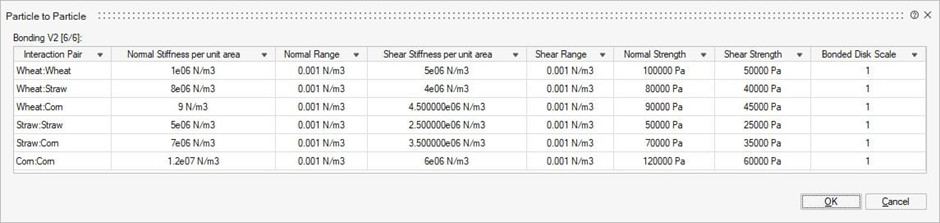
Once the desired contact model is selected through the Physics dialog window, its values can be reviewed and modified if needed using the Review tool, which displays all physics properties in a clear, tabular format.
Step 6 - Run the coupled solution
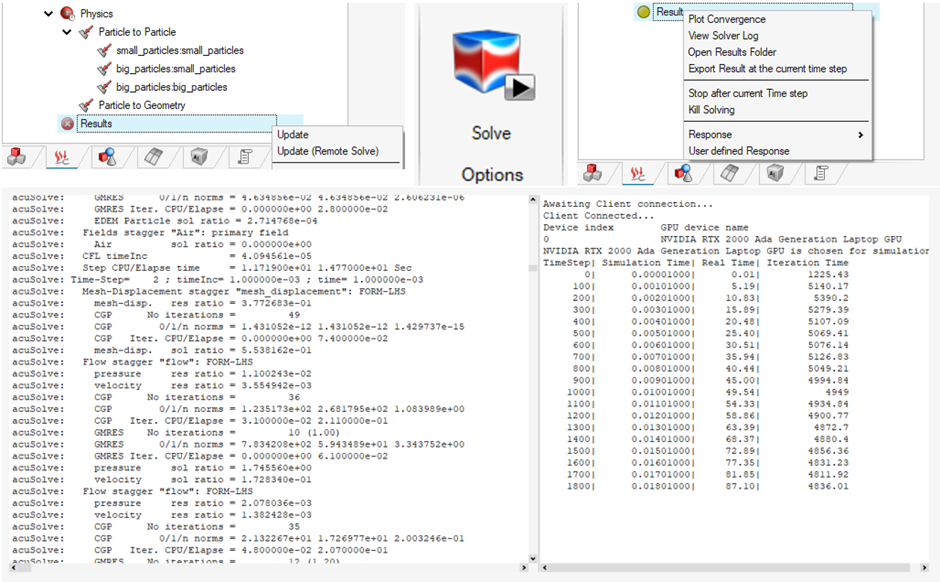
If the simulation is properly defined, it should be ready to run. Click on Results and then select Update, or go to the Ribbon tab and click Solve.
During the simulation, the progress indicator (dot light) next to Results will turn yellow. Once the simulation is complete, it will turn green.
While the simulation is running, users can monitor progress by opening the Solver Log or plotting Convergence. The Solver Log provides a combined output from both AcuSolve and EDEM.
Step 7 - Post-processing
The solution can be fully post-processed within SimLab. Several result display options are available:
- Flow Results – Displays only the flow solution from the AcuSolve solver.
- EDEM Results – Displays only the particle solution from the EDEM solver. This functionality is still under development and aims to replicate most of the features available in EDEM Analyst. If needed, EDEM Analyst can be opened directly from SimLab for more advanced particle-based post-processing.
- Coupled Results – Displays overlaid flow and particle data, allowing simultaneous animation of both results.
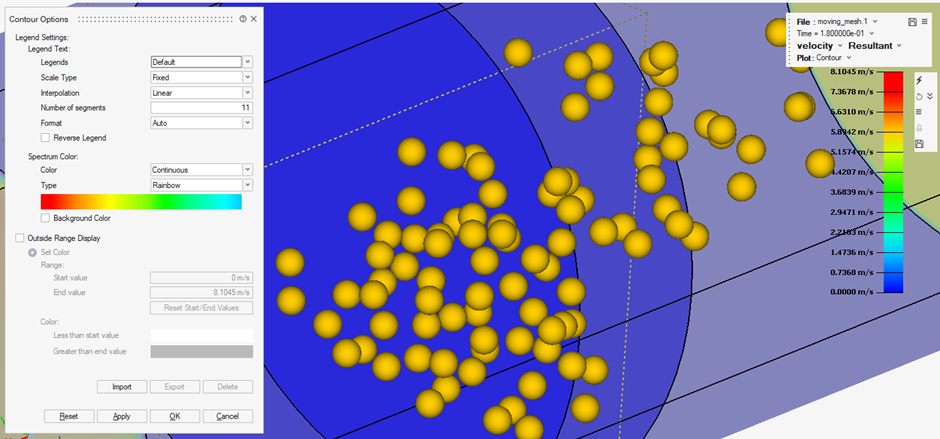
SimLab's post-processor enables engineers to evaluate the performance of an air classifier by:
- Analyzing particle separation efficiency based on size, shape, and density distributions.
- Optimizing airflow velocity and the classifier geometry to improve separation accuracy.
- Visualizing particle trajectories and segregation zones within the classifier using advanced post-processing tools in SimLab.
- Assessing the impact of operational parameters, such as fan speed or inlet pressure, on cut size and throughput.
- Predicting accumulation zones and potential wear regions within the classifier.
- Gaining insights into the classification behavior of real-scale bulk material systems under different operating conditions.

In the upcoming posts, we will share updates on newly added EDEM solver functionalities integrated into SimLab. The current implementation is still in a beta stage, and some features remain limited at this time. Development is ongoing to expand the capabilities and deliver a more comprehensive workflow inside SimLab for EDEM couplings with AcuSolve and OptiStruct.
Learn more about EDEM couplings:
To get started with EDEM:
For more information on EDEM-CFD
For more information on EDEM-OptiStruct
For more information on EDEM-MotionSolve